Guide · Updated June 2026
Start with two lists, end with five answers
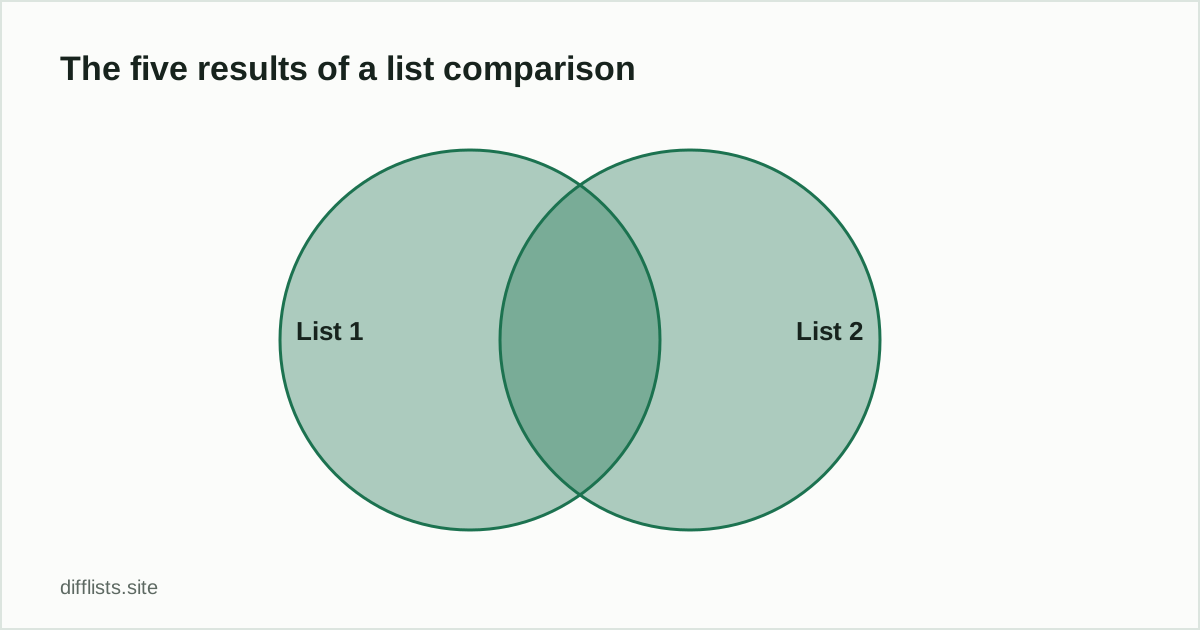
Most list-comparison questions boil down to one of five things: what’s only in list one, what’s only in list two, what both share, everything combined, or everything that differs. A browser-based comparison tool answers all five at once, without a spreadsheet formula or a script.
1. Paste or import each list
Drop your first list into List 1 and the second into List 2. You can type directly, paste from a spreadsheet column, or open a .txt, .csv, or .tsvfile. One item per line is the default, but delimited data (comma, semicolon, tab, or pipe-separated) works too — just set the separator in the next step.
2. Choose how items should match
Before comparing, decide how strict the match should be:
- Case sensitive — off by default, so “Apple” and “apple” count as the same item.
- Trim spaces — removes leading/trailing whitespace so a stray space doesn’t break a match.
- Ignore blanks — skips empty lines instead of counting them as items.
- Natural sort — orders results so numeric IDs sort correctly (item-2 before item-10).
3. Read the five result sets
Once you compare, you get:
- Only in List 1 — items missing from List 2.
- Only in List 2 — items missing from List 1.
- Intersection — items present in both lists.
- Union — every distinct item across both lists.
- Symmetric difference — everything that doesn’t match, from either side.
If set notation is new to you, see Union vs. Intersection vs. Difference for a plain-English breakdown.
4. Copy, download, or export
Each result panel has its own copy and download buttons, so you can grab just the list you need. Use Export full reportto save every result set plus match-rate stats as one JSON file — handy for a reconciliation record.
When to reach for a script instead
A browser tool is fast for lists you can comfortably paste — typically up to a few hundred thousand lines. For recurring comparisons against a live database, or truly massive exports, a SQL join or a short Python/pandas script is usually the better long-term fit.
Ready to try it yourself?
Open the toolFrequently asked questions
Is comparing two lists online free?
Yes. DiffLists is free with no signup, no account, and no limit on how many comparisons you run.
Do I need to format my lists first?
No. Paste items one per line, or delimited by commas, semicolons, tabs, or pipes — the tool auto-detects common separators.
Will my list data be uploaded anywhere?
No. The comparison runs in your browser tab and is never transmitted to or stored on a server.
What's the difference between union and symmetric difference?
Union is every distinct item from both lists combined. Symmetric difference is only the items that don't match between the two lists.
Can I compare more than two lists at once?
Not yet — the tool currently compares exactly two lists at a time. Run it twice if you need to check a third source against the others.