Free tool
Sort a List Alphabetically, Online
Paste a list below and get it back sorted A→Z or Z→A instantly. Natural sort keeps numbered items in the right order — nothing you paste ever leaves your browser.
Your list
One item per lineHow the list alphabetizer works
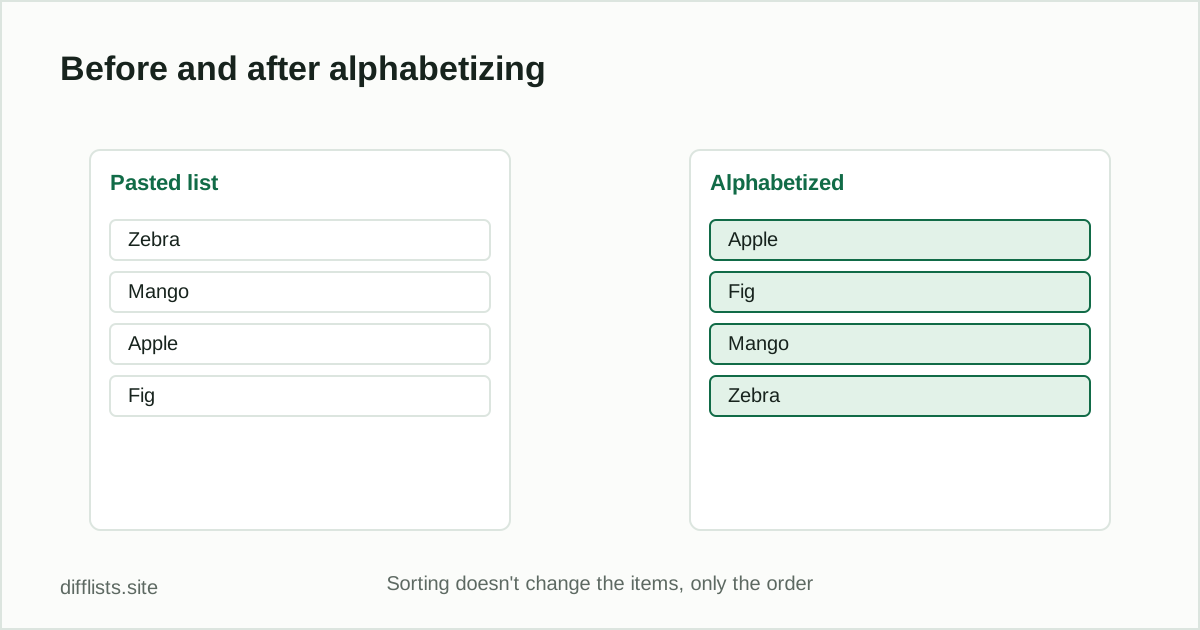
Paste any list — names, SKUs, file paths, anything one-per-line or delimited by a comma, tab, or pipe — into the box above. Choose ascending (A→Z) or descending (Z→A) order, decide whether the sort should be case-sensitive, and click Alphabetize list. The sorted result appears immediately, ready to copy or download.
Plain alphabetical sort compares text character by character, which puts item-10 before item-2because “1” comes before “2”. This tool uses natural sort by default logic for numeric segments, so numbered and zero-padded items land in the order a human would expect.
When to use this instead of a spreadsheet
Excel and Google Sheets both have a built-in A→Z sort, which is the right call when the list already lives in a spreadsheet. This tool is faster when you just have plain text — a pasted list, an export, or output from another tool — and don’t want to open a spreadsheet at all. See the Excel comparison guide if you need to sort and compare two spreadsheet columns together.
Sorting before a comparison
Sorting doesn’t change whether two lists match each other — set operations like intersection and difference don’t care about order. But a sorted list is much easier to scan visually before or after running a full comparison. Use the list comparison tool once your lists are clean and sorted, or read the side-by-side comparison guide for tips on reading two sorted lists together.
Common uses for an online alphabetizer
- Classroom rosters and name lists: sort attendee or student lists alphabetically for handouts or sign-in sheets.
- Bibliographies and citation lists: alphabetize author names or reference titles before submitting a paper.
- Product or asset catalogs: sort SKUs, model numbers, or asset tags for a clean printed or exported list.
- Word lists and glossaries: alphabetize a vocabulary list, glossary, or index before publishing.
- Cleaning up a pasted export: quickly reorder a list pulled from a spreadsheet, CMS, or another tool before using it elsewhere.
Tips for accurate sorting
Numbers, punctuation, and symbols sort differently from letters — a list mixing “3M”, “#hashtag”, and “Apple” won’t alphabetize the way a phone book would, because standard sort order places digits and symbols before letters. If your list is entirely names or words, this rarely matters; if it mixes formats, review the result before relying on it. Decide on case sensitivity before sorting too — with it off (the default), “apple” and “Apple” sort next to each other; with it on, uppercase and lowercase versions of the same word can end up in different parts of the list depending on your locale’s collation rules.
The tool works on lists of any practical size, from a handful of names to tens of thousands of rows, since sorting runs directly in your browser tab rather than on a server. There’s nothing to install and no file format to convert to first — paste plain text, delimited text, or a column copied straight from a spreadsheet.
Alphabetizing multi-word entries
For names and titles with more than one word, sort order follows the first character of the whole entry, not a specific word within it — “Van Halen” sorts under “V”, not “H”. If you need surname-first alphabetizing for a list of full names, rearrange each entry to “Last, First” format before pasting, since this tool sorts the text exactly as written rather than trying to infer which part is a surname. The same applies to titles beginning with “The” or “A” — they sort under T or A unless you manually drop the leading article first.
Related
For the full step-by-step walkthrough including common mistakes, read how to alphabetize a list online. If your list also has repeated entries, use the duplicates remover tool, or compare two sorted lists with the full comparison tool.
Is this alphabetizer free to use?
Yes, with no signup, no account, and no limit on how many lists you sort.
Does it handle numbered items correctly?
Yes. Natural sort keeps zero-padded codes and numbered items like "item-2" before "item-10" instead of sorting them as plain text.
Can I sort in reverse (Z to A)?
Yes, toggle the A→Z / Z→A option before sorting.
Does this tool remove duplicates too?
No, this tool only reorders items. Use the duplicates remover if you also need to deduplicate.
Will it sort a comma- or tab-separated list?
Yes, the tool auto-detects common delimiters (comma, semicolon, tab, pipe) as well as one-item-per-line lists, so you don't need to reformat before pasting.
Does sorting work the same in every language?
Sorting uses your browser's locale-aware comparison, so accented characters and non-English alphabets generally sort in a sensible order, though exact behavior can vary slightly by language.